
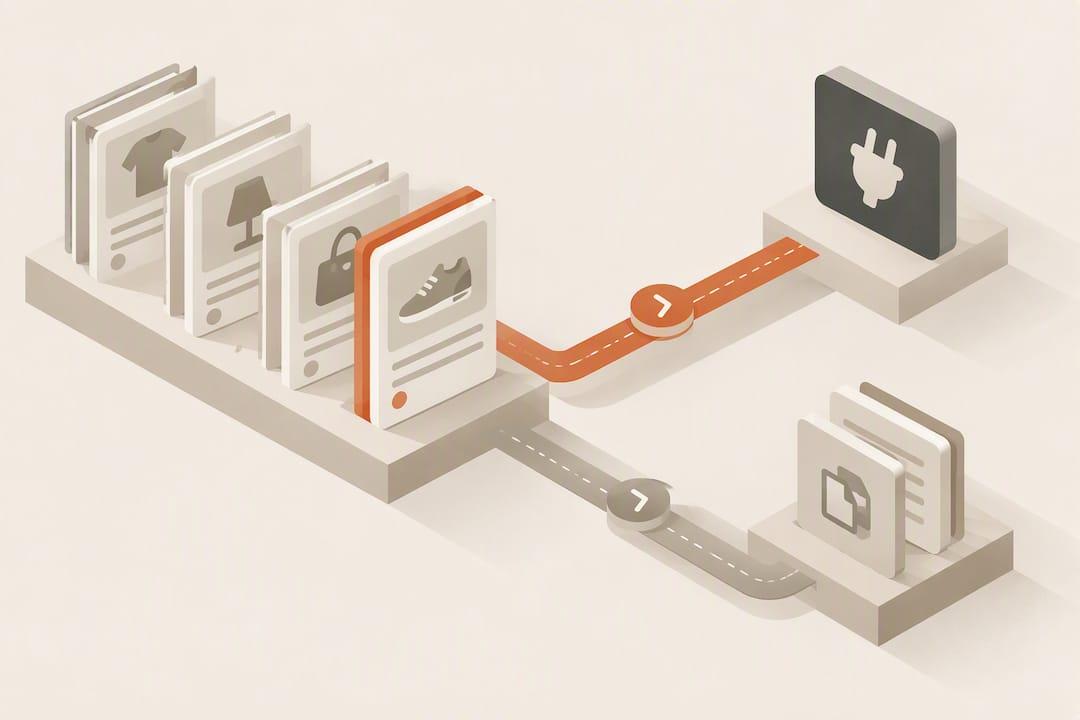
An eBay listing template is a saved, reusable description layout you build once inside Seller Hub and apply to every new listing after that. Go to Seller Hub, click Listings, then Listing Templates to start one right now. The payoff is straightforward: consistent formatting across your store, faster listing sessions, and fewer buyer disputes caused by mismatched or missing information.
TL;DR:
- Using multiple templates per category with specific naming conventions helps organize favorite layouts and streamlines bulk listing processes.
- Regularly reviewing templates every few months ensures policies, shipping costs, and details remain up to date, preventing hidden revenue losses.
- Avoid templates for unique, highly technical, or auction items that require custom stories or individual arrangements, as fixed layouts hinder flexibility.
- Creating responsive, clean, and mobile-friendly designs with structured data and clear labels reduces the risk of formatting issues and enhances buyer trust.
- AI tools like Hawker-app can generate descriptions from photos, automating content population while maintaining compliance and saving significant listing time.
Table of Contents
- Why eBay Listing Templates Save Time and Cut Returns
- How Do You Create a Listing Template in Seller Hub?
- Applying, Editing, and Managing Your Saved Templates
- What Makes an eBay Template Design Actually Work?
- Compliance Checklist Before You Save Any Template
- Free Tools That Generate Compliant eBay HTML
- Copyable Template Skeletons You Can Adapt Today
- How AI Tools Fit Into a Compliant Template Workflow
- What Seasoned Sellers Get Wrong About Template Maintenance
- Hawker-app: Skip the Manual Fill-In, Keep the Compliant Template
- Sources
- FAQ
Why eBay Listing Templates Save Time and Cut Returns
Templates solve a problem every seller eventually hits: the tenth listing of the week never looks like the first one. Shipping details drift, return policy language gets forgotten, and photos end up in a different order every time. A saved template locks that structure down.
Consistency builds buyer trust faster than almost anything else in your store. When every listing uses the same section order, the same tone, and the same disclosure about condition, shoppers stop guessing and start trusting your account as a whole, not just the one item in front of them. Sellers who use clean, repeatable layouts report fewer returns, largely because buyers know exactly where to look for sizing, flaws, or included accessories before they click "Buy."
Speed matters just as much once you're listing in volume. A seller moving five items a week can get away with writing from scratch. A seller moving fifty cannot. Templates turn a fifteen-minute listing into a three-minute one, since the shipping panel, returns language, and payment blurb are already written. You're only filling in what's actually unique: title, price, condition notes, and photos.
There's a limit worth understanding early, though: templates control your description design, not your search ranking. eBay's search algorithm weighs your title and item specifics far more heavily than anything inside the description field. Structured fields like item specifics drive visibility, while the description itself mostly affects whether a buyer who already found you decides to convert. A gorgeous template will not rescue a vague title.
Templates aren't universally ideal. A few situations where they work against you:
- One-off estate finds or unique vintage pieces where every item needs its own story and photos in a different arrangement.
- Highly technical items (industrial equipment, rare instruments) where specs vary so much between units that a fixed layout forces awkward workarounds.
- Auction-style collectibles where provenance and condition notes are genuinely singular each time.
For everything else, especially repeat categories like clothing, electronics accessories, or collectible cards, a template is close to a requirement once you pass a handful of listings a month.
How Do You Create a Listing Template in Seller Hub?
Building your first template takes about ten minutes, and every one after that takes less.
- Open Seller Hub and navigate to Listings, then click Listing Templates (or use the quick link inside the listing creation flow).
- Start a new template and give it a name that describes its use, not just "Template 1." Something like "Clothing, Standard Shipping, US Only" tells you at a glance what it's for six months from now.
- Choose your default blocks. This usually means a photo placement zone, a shipping panel, a returns policy paragraph, and accepted payment methods.
- Write your reusable text blocks. Draft the boilerplate you'll never want to retype: your standard return window, your handling time, your "why buy from us" line if you use one.
- Add placeholders for the fields that change every time, things like [ITEM CONDITION] or [MEASUREMENTS], so future you knows exactly what to swap out.
- Save the template and give it a final naming pass. Consistent naming conventions matter more once you have a dozen templates than they do with your first one.
eBay sets a limit on the number of unique templates a seller can create per account, which is generally sufficient for most stores, which sounds like plenty until you're running a multi-category store. A practical split is one template per product category, then a second layer for shipping variation (domestic only versus international) within each. That gets you to a workable number, usually somewhere between eight and twenty, without hitting the ceiling.
eBay's own help documentation on selling templates walks through the same creation flow and includes screenshots if you want a visual reference while you build your first one.
Pro Tip: Name your templates with a version number from day one, like "Electronics_Accessories_v2." When you tweak a template three months from now, you'll know exactly which listings still need updating and which ones already got the new language.
Applying, Editing, and Managing Your Saved Templates
Once a template exists, using it is the easy part. When you start a new listing, look for the option to apply a saved template early in the listing flow, it will pre-populate your description, shipping settings, and returns policy in one click. If you're listing in bulk through Seller Hub's bulk edit tools, you can apply a template across multiple draft listings at once, which is where the real time savings show up.
Managing your library over time matters just as much as creating it well:
- Editing a template updates it for future use only; listings you already published won't retroactively change unless you edit them individually.
- Renaming is useful once your catalog shifts, don't be afraid to rename a template that's outgrown its original purpose.
- Copying a template before you tweak it protects your original. Always duplicate before you experiment with a template that's currently working well.
- Troubleshooting display issues after pasting text (broken spacing, weird fonts, images not loading) almost always traces back to formatting carried over from a word processor. Strip it back to plain text and rebuild the formatting inside eBay's editor instead of pasting rich text directly.
Check both desktop and the mobile app after any edit. A template that looks fine on a laptop screen can break into oddly wrapped columns on a phone, and most eBay buyers are shopping from one.
What Makes an eBay Template Design Actually Work?
Good template design isn't about looking fancy. It's about being fast to scan and impossible to misread on a five-inch screen.
Start with layout. Every image and content block should use a single-column, responsive structure, with images capped at max-width:[100%](https://developer.mozilla.org/en-US/docs/Web/HTML/Guides/Responsive_images) so they resize to fit whatever device is displaying them. Multi-column layouts that look sharp on a monitor tend to collapse into a mess on mobile, and a majority of eBay traffic happens on mobile devices, so design for the phone first and let the desktop version inherit from that.

Keep your structured data where it belongs. Item specifics, the dropdown fields eBay gives you during listing creation, are where brand, size, material, and model number should live, not buried inside a paragraph in your description. The description field exists for reassurance and clarification: answering the questions a buyer has after they've already seen the specs.
Formatting choices that consistently perform better:
- Clear section labels ("Condition," "What's Included," "Shipping & Returns") so buyers can jump straight to what they care about.
- Short paragraphs, two to three sentences max, with white space between them.
- Bullet lists for anything enumerable: included accessories, measurements, known flaws.
- The most important information first: condition and what's included before shipping logistics.
One consistent finding across seller advice on this topic: experienced sellers report meaningfully fewer returns when they front-load condition details and use scannable formatting instead of dense paragraphs, since buyers who fully understand what they're getting are far less likely to open a case afterward.
Plain language beats clever language every time in a marketplace listing. Avoid jargon your buyer might not know, spell out abbreviations the first time you use them, and write sentences a tired person scrolling on their phone during lunch can understand on the first read. That's your actual audience, more often than not.
Compliance Checklist Before You Save Any Template
Run through this before a new template goes live, not after you've already published fifty listings with it.
- No active content, ever. eBay's policy explicitly bans JavaScript, Flash, plug-ins, and iframes inside listing descriptions. Anything with embedded scripts risks the listing getting stripped or flagged.
- Style with inline CSS only. External stylesheets don't load reliably inside eBay's rendering environment, so every style attribute needs to live directly in the HTML tag.
- Host every image over HTTPS. Non-secure image links can fail to render or get blocked outright, especially on mobile.
- Link only to eBay pages, if you link at all. Outbound links to your own website or third-party stores violate listing policy.
- Preview before you publish. Check the rendered output on desktop and inside the eBay app, they don't always match, and mobile is where most of your buyers are looking.
Pro Tip: Keep a plain-text backup of every template's content outside of eBay. If a template gets flagged or stripped for a policy issue you didn't catch, you'll want the original text ready to rebuild from instead of reconstructing it from memory.
Free Tools That Generate Compliant eBay HTML
You don't have to hand code inline styles from scratch. Free template generators exist specifically to produce eBay-safe HTML: inline styles baked in, single-column layout by default, and HTTPS enforced on any image URL you drop in.
Here's what a decent generator should hand you:
- Output that's already formatted with inline styles, no external CSS file to worry about.
- A single-column structure that resizes properly instead of a rigid multi-column grid.
- Automatic rejection or warning on any non-HTTPS image link before you can copy the code.
- Clean HTML you paste directly into the HTML tab of eBay's description editor, not the visual editor.
Some tools go further and offer a visual, drag-and-drop interface for building the layout before generating code, WYSIWYG-style builders let you see roughly what the finished description will look like as you build it, which helps if you're not comfortable reading raw HTML.
Generators are the right call when you want a polished layout fast and don't already have design instincts of your own. Building templates natively inside Seller Hub makes more sense when your priority is workflow speed, applying the same saved template to dozens of listings in a bulk session, rather than getting the most visually elaborate description possible. Most sellers end up using both: a generator for the visual skeleton, Seller Hub for the day-to-day application and management.
Copyable Template Skeletons You Can Adapt Today
Rather than start from a blank page, adapt one of these skeletons to your category and voice.
Short skeleton for general listings: A one-line overview sentence up top, followed by a bulleted list of five key features, a short condition paragraph, a line on what's included, and a shipping and returns panel at the bottom.
Detailed skeleton for high-value or technical items: The same structure, but with an added measurements block (dimensions, weight) and, where relevant, a serial number or authenticity note placed right after the condition paragraph. Buyers spending more money read more carefully, so give them more to read.
The micro-patterns below work inside either skeleton, and you can mix and match them depending on category:
- One-liner overview: a single sentence stating what the item is and its standout quality.
- Five-bullet feature list: the fastest-scanning format for specs or highlights.
- Condition paragraph: two to three sentences, specific rather than vague ("light shelf wear on the left corner" beats "good condition").
- Included accessories line: a short list so buyers know exactly what ships.
- Shipping and returns panel: your handling time, carrier, and return window in one tight block.
| Category type | Skeleton to use | Extra field to add |
|---|---|---|
| Clothing and accessories | Short | Size chart reference |
| Electronics | Detailed | Serial number, tested condition |
| Collectibles | Short | Provenance line |
| Home goods | Short | Dimensions |
On mobile, trim aggressively. A block that reads fine on desktop can push your key details below the fold on a phone screen, so put the condition paragraph and included-accessories line above the shipping panel, not after it.
How AI Tools Fit Into a Compliant Template Workflow
Templates solve structure. They don't solve the blank-field problem, the ten minutes you spend every listing figuring out what to actually write in the condition paragraph or the feature bullets. That's where AI-assisted workflows have started changing the math for high-volume resellers.
AI Vision tools, including the approach Hawker-app uses, can generate a marketplace-specific description draft directly from a photo of the item, populating the fields your template leaves blank instead of leaving you to type them from scratch every time. You still get to keep your compliant layout and formatting; the tool just fills in the parts that used to eat your time.
Publishing method matters here more than people realize. Login-automation tools that mimic a browser session to auto-post listings carry real account risk, since they operate outside what marketplaces officially support. A safer approach uses direct API integration where a platform supports it, and a manual copy-paste flow where it doesn't, avoiding automated login behavior entirely while still saving the manual re-entry work.
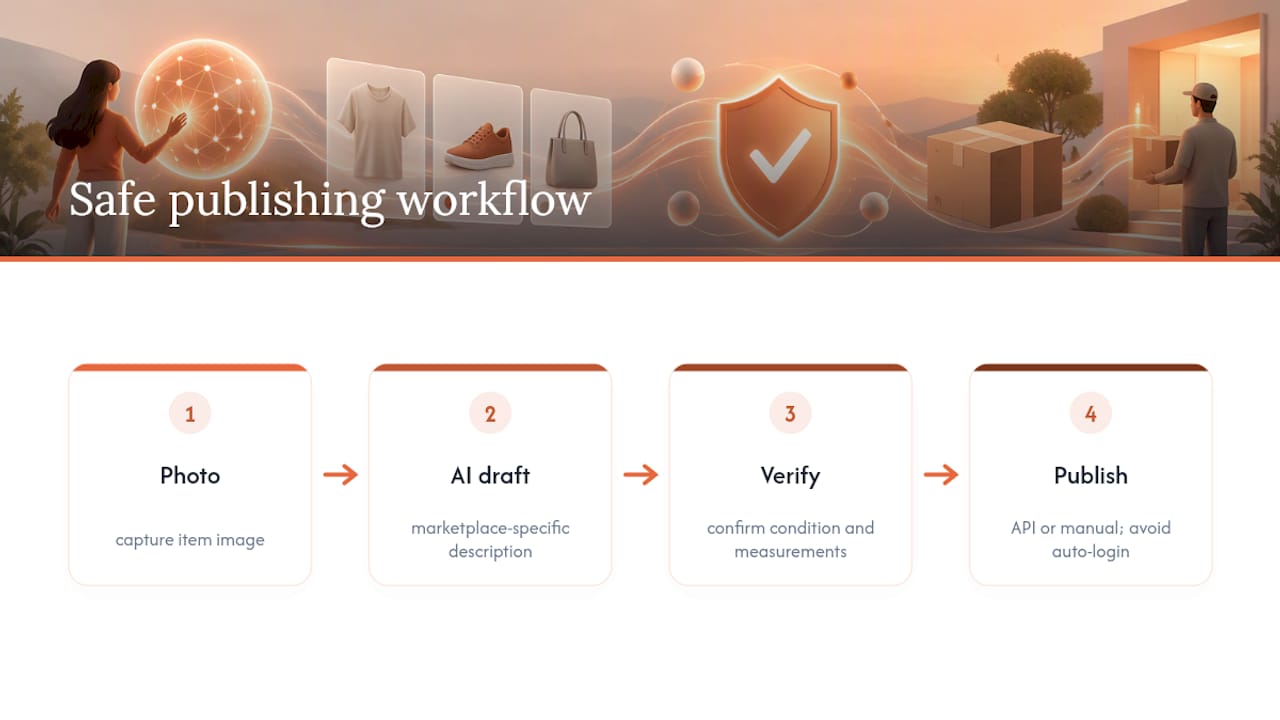
Bulk listing and inventory management tools extend this further, letting a template and an AI-generated draft scale across dozens of items in one sitting rather than one at a time. None of this replaces your judgment, though. Always verify condition details, measurements, and any AI-drafted claim against the actual item in hand before you publish. A draft is a starting point, not a finished listing.
What Seasoned Sellers Get Wrong About Template Maintenance
Templates aren't a one-time build. They're closer to a living document that needs a checkup every few months, and most sellers skip that step until something breaks.
Set a review cadence: every quarter, open your top three most-used templates and check whether your return policy language, shipping costs, or handling times still match reality. Policies change, shipping carriers raise rates, and a stale template quietly costs you money until a customer complaint forces the issue.
The most common mistake is treating one template as universal across wildly different item types, then wondering why conversion drops on categories it was never built for. The fix is almost always a five-minute duplication and edit, not a full rebuild. A close second mistake: never previewing on mobile after an edit, then discovering weeks later that a broken image tag has been showing blank space to half your buyers.
Naming discipline solves more problems than people expect. A template called "New Template (3)" six months from now tells you nothing. A template called "Shoes_Domestic_v3" tells you everything you need before you even open it.
— Jamie
Hawker-app: Skip the Manual Fill-In, Keep the Compliant Template
Templates handle your layout. Hawker-app handles the part templates can't: writing the actual product description from a photo, in seconds, tailored to the marketplace you're posting to. Where a traditional template still leaves you typing out condition notes and feature bullets by hand for every single item, Hawker-app's AI Vision drafts that content directly from the picture you just took.
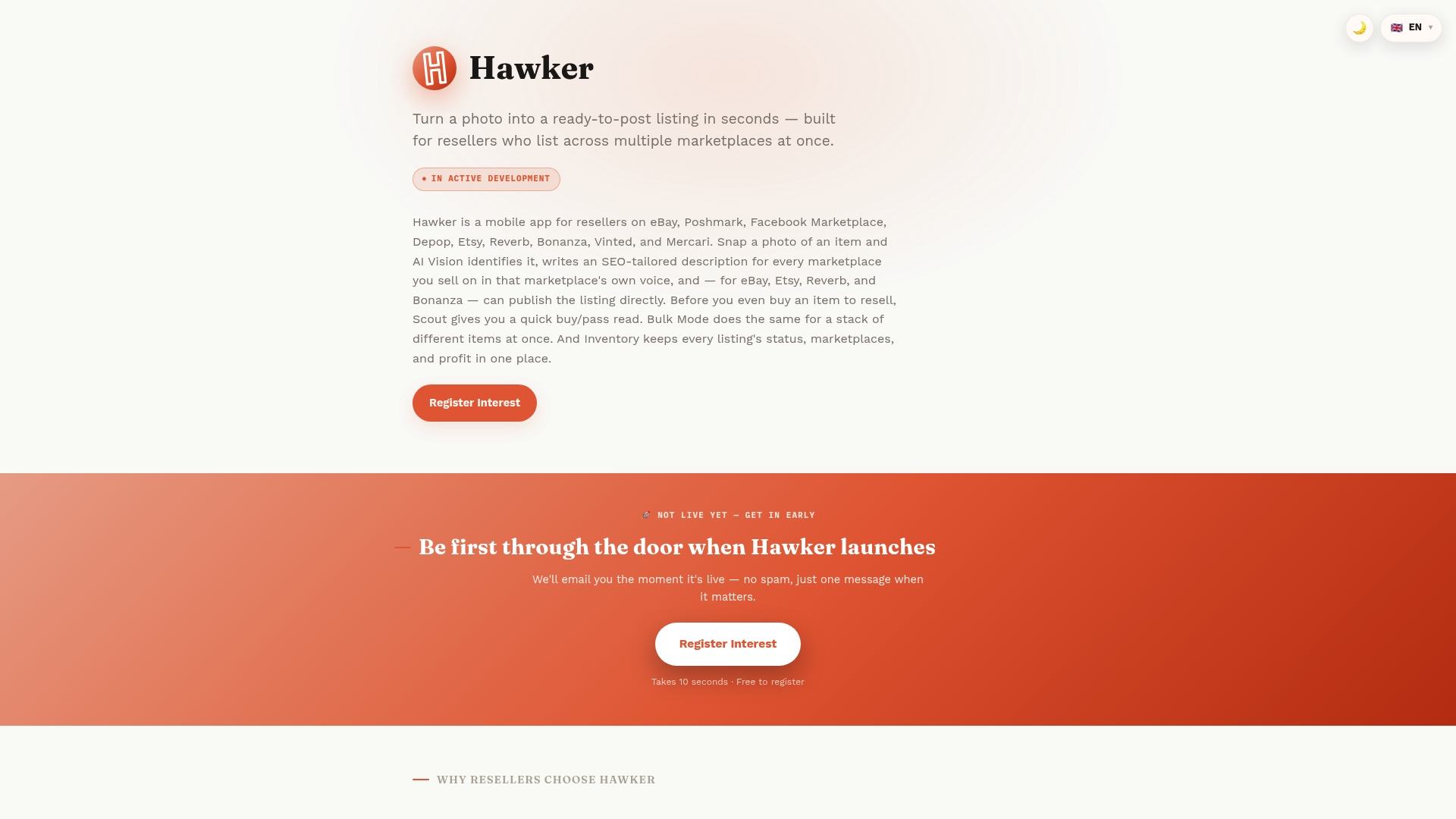
This app publishes directly through official APIs to some marketplaces and offers a safe copy-paste flow for platforms without that integration, avoiding the account risk that comes with login-automation tools. That combination can benefit sellers running high volume across multiple marketplaces at once, or small teams who need a shared sourcing queue and dashboard instead of everyone working from separate spreadsheets.
If your listing sessions are still mostly manual retyping between a template and a blank description box, that's the exact gap this closes. Check the current plans and features and start with the free tier to see how much time a single photo-to-description draft actually saves on your next batch of listings.
Sources
- eBay provides native 'Selling Templates' within Seller Hub
- How to create and use selling templates
- EBay Listing Templates That Convert & Reduce Returns
- eBay Listing Template Generator - Free HTML Description Templates
FAQ
Where Can I Find Listing Templates on eBay?
Templates live inside Seller Hub, under Listings, then Listing Templates. You can also access the option to apply a saved template from within the listing creation flow itself.
Why Are Sellers Leaving eBay?
Sellers who leave usually cite rising fees, tougher return policies, and stronger competition from other marketplaces, not a single cause. Many who stay lean harder on efficiency tools, templates, bulk listing, and multi-marketplace strategies, to protect their margins under those pressures.
How Much Does eBay Take From a $10,000 Sale?
eBay's final value fees vary by category and typically fall in the low double digits as a percentage of the total sale, so the exact amount depends on what you're selling and which store subscription tier you're on. Check eBay's current fee schedule for your specific category before estimating your take-home on a large sale.
Is There a Free Template for an eBay Spreadsheet?
Yes, several sellers and tool sites offer free spreadsheet templates for tracking inventory, listings, and profit alongside your eBay account, though these are separate from the description templates built inside Seller Hub. If you're managing inventory across multiple marketplaces, a tool like Hawker-app's inventory management features can reduce the need for a manual spreadsheet altogether.
Does a Template Improve My eBay Search Ranking?
Not directly. Your title and item specifics drive search visibility, while your description template mainly affects whether a buyer who already clicked through decides to purchase.